
Midwest has the option for you to save all the products you want quoted in a Wish List. This works great for repeated consumables you need year after year.
Building a Wish List
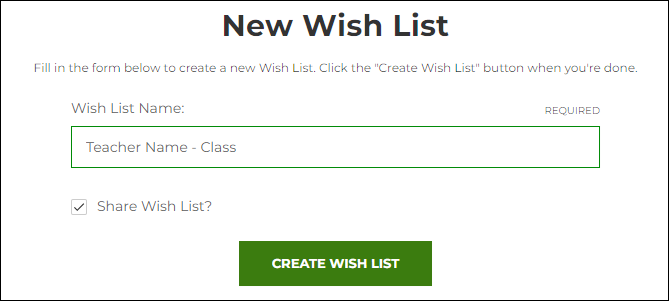
First, you will need to register or sign in. If you click on “Add to Wish List” from a product page, it’ll prompt you to sign in or register first.
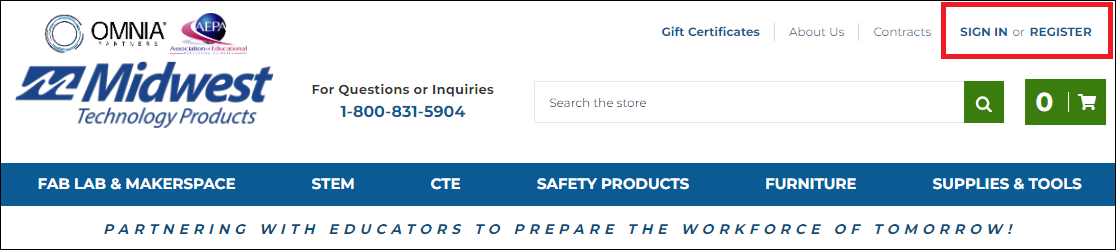
On the product page, click on “Add to Wish List.” You can choose a default “My Wish List” or choose to name your own. You can always edit the name later.
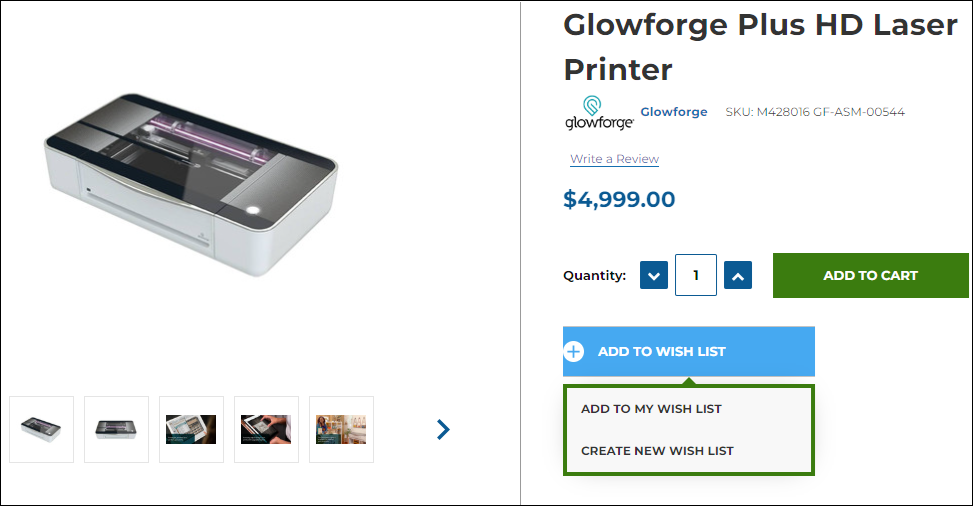
Choosing to create a new Wish List, or editing it later, will prompt you to name the Wish List. You can have one for each class, each teacher, or a combination.
It’ll also ask if you want to share your Wish List. This can be changed later, too. We encourage you to click the share checkbox to make it easier to send to colleagues.
To view your Wish Lists, click on “Account” on the top-right of the webpage, and click on “Wish Lists.”

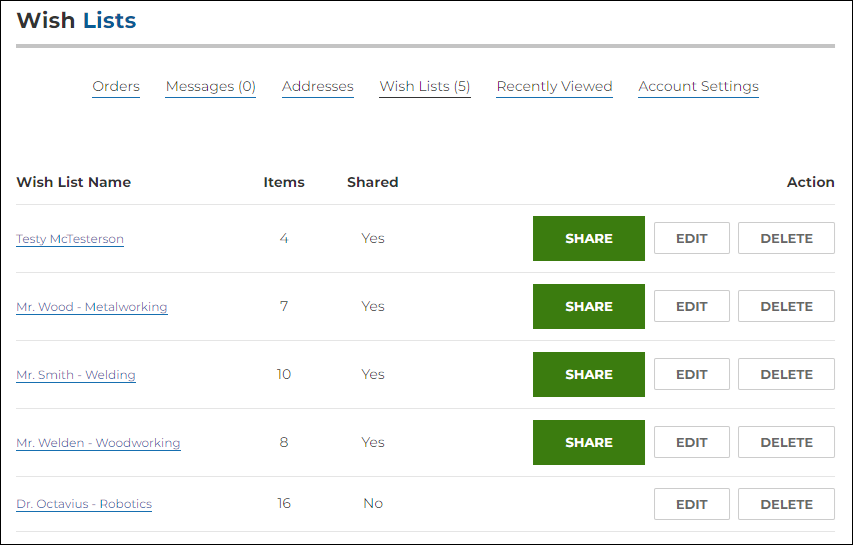
In the Wish Lists window, you’ll be able to view all your saved Wish Lists and edit them to change their name or make them shareable.
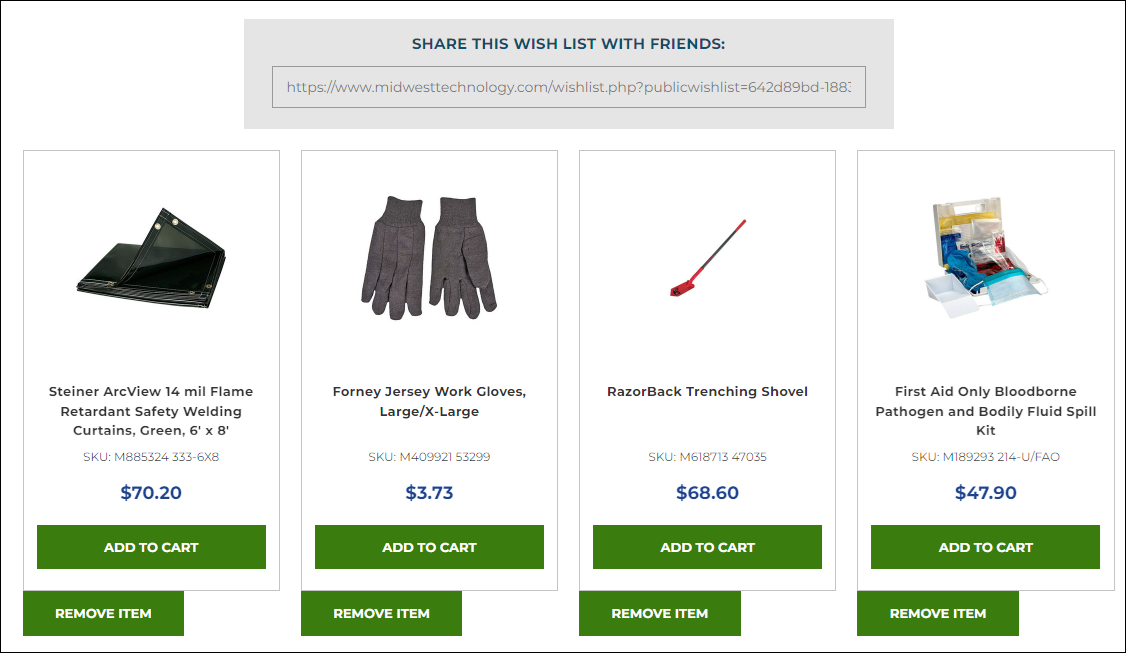
When shared, it will produce a URL at the top of your Wish List. This can be copy/pasted into an email for others to review.
In the Wish List, you can remove any product you no longer need or add them to your cart.
Requesting a Quote
Copy/pasting the link works best to send us your full Wish List for a quote.
If you only want a quote for a select number of items but would prefer to keep everything in your Wish List, there are 2 options.
- The easiest way is to click “Add to Cart” under each item you want quoted. Then click the cart icon on the top-right to view your cart (below “Check Out Now” button). When viewing your cart, right-click on the page and choose “Print” (or Ctrl + P). Change your printer to “Save as PDF” and attach that PDF file to an email, asking for a quote.
- Alternatively, you can click on each item to pull up the product page, or click “Quick View,” and choose “Add to Quote” just below the “Add to Wish List” button. When you have everything selected, click the “Finish Quote” button that’ll appear on the bottom-right of the website, verify your information, and click “Submit Quote.” This option will save all the quotes you’ve sent in and you can review them.
Wish Lists provide an easy way to save products and share them with your school’s team or Midwest Technology Products when requesting a quote. By centralizing selections in one place, they streamline collaboration and decision-making. This feature is designed to support efficient planning and purchasing at every stage.